Storage
Install to internal media, ZFS, NFS, read-only rootfs
Install
Install the running system to internal media
- Clones your current live OS installation
- Keeps your settings, configuration, installed packages, and user data
- Essentially “transfer my existing system to internal/external storage”
Use this option to transfer your current live Armbian system to another storage device (eMMC, SSD, USB, etc.). This copies your existing installation exactly as it is — including settings, installed packages, and user data.
| Install | |
|---|---|
Download and flash
Download a fresh, official Armbian OS image and write it to a device
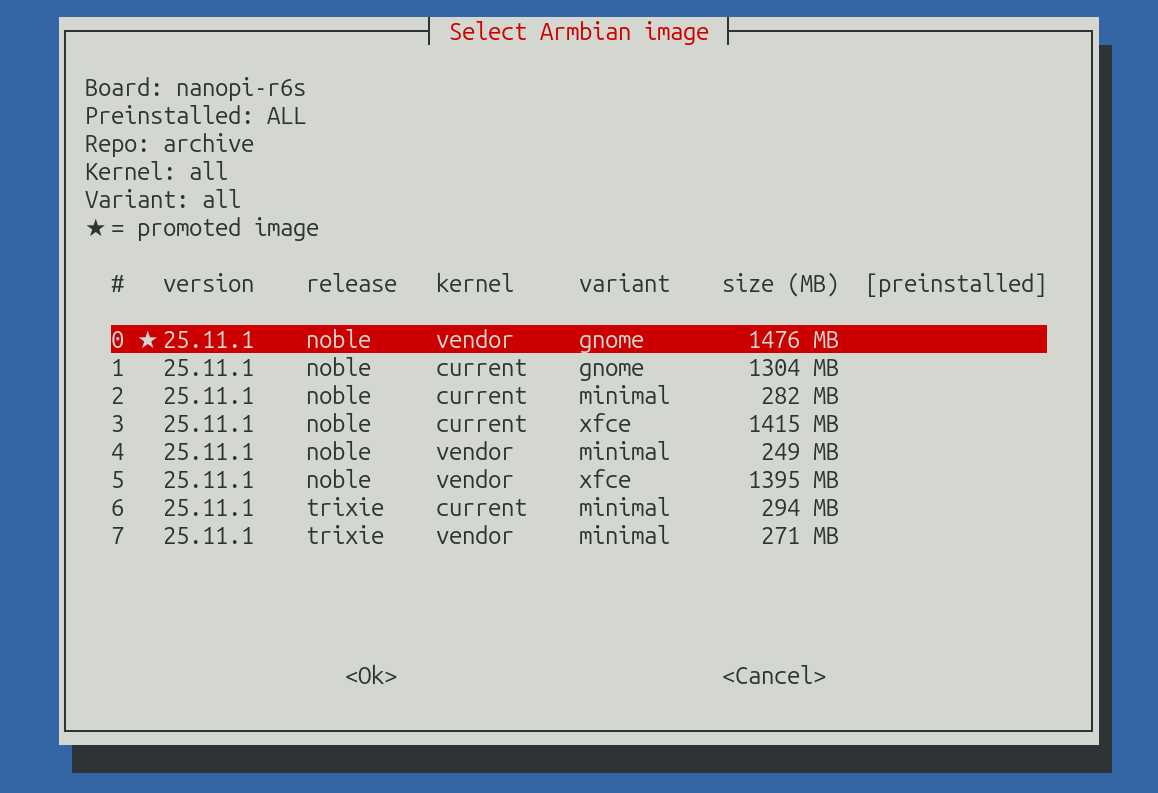
What can this tool do?
- Install Armbian onto internal eMMC, SSD, or other storage
- Create bootable SD cards or USB drives for any supported board
- Recover a system by re-flashing a clean image
- Switch between different OS variants, kernel branches, or preinstalled applications
- Accelerate development with fast, repeatable deployments for testing and automation
| Download and flash | |
|---|---|
| Remove cached images | |
|---|---|
Read Only FS
Enable read only filesystem
Read-only filesystem is enabled using overlayroot, a utility that places a temporary writable layer over the system root filesystem. Changes made during runtime are redirected into RAM or an alternative writable storage, while the underlying system remains untouched. This ensures that after a reboot, the system returns to a clean original state. It’s ideal for kiosks, appliances, SD card-based systems, and scenarios where long-term filesystem durability and recovery are critical.
| Read Only FS | |
|---|---|
| Disable read only filesystem | |
|---|---|
NFS
Enable Network filesystem (NFS) support
| NFS | |
|---|---|
| Disable Network filesystem (NFS) support | |
|---|---|
NFS server
Enable network filesystem (NFS) daemon
| NFS server | |
|---|---|
| Configure network filesystem (NFS) daemon | |
|---|---|
| Remove network filesystem (NFS) daemon | |
|---|---|
| Show network filesystem (NFS) daemon clients | |
|---|---|
Find NFS servers
Find NFS servers in subnet and mount shares
| Find NFS servers | |
|---|---|
| Show and manage NFS mounts | |
|---|---|
ZFS
ZFS filesystem - enable support

ZFS is an advanced, high-performance file system and volume manager designed for data integrity, scalability, and ease of use. It offers features like copy-on-write snapshots, native compression, data deduplication, automatic repair, and efficient storage pooling. Originally developed by Sun Microsystems, ZFS is ideal for handling large amounts of data reliably with minimal maintenance.
When enabling ZFS support, Armbian checks if the running kernel can support ZFS, installs matching kernel headers if necessary, and builds the ZFS DKMS (Dynamic Kernel Module Support) module automatically.
The ARC (Adaptive Replacement Cache) is ZFS’s intelligent caching system.
Recommended Settings:
- ARC Min: 1/8 of RAM (minimum cache size)
- ARC Max: 1/2 of RAM (maximum cache size)
For memory-constrained ARM devices (1-2 GB RAM):
- Consider limiting ARC to 256-512 MB to leave memory for applications
- ARC Max = 0 means “use all available RAM” (may not be ideal for small systems)
Impact:
- Higher ARC = better read performance for frequently accessed data
- Too high ARC can cause system swapping and degraded performance
Dirty data is modified data waiting to be written to disk.
Recommended Setting:
- 4% of RAM (or 4% of ARC size, whichever is smaller)
Impact:
- Higher values = better write performance, more data loss risk on power failure
- Lower values = safer data, more frequent disk writes
TXG (Transaction Group) controls how often ZFS writes changes to disk.
Recommended Setting:
- 5 seconds (default)
Range: 1-30 seconds
Impact:
- Lower (1-3s): Better data safety, more disk writes, lower performance
- Higher (10-30s): Better performance, more data loss risk on power failure
ZFS compression is transparent and can actually improve performance by reducing I/O.
Options:
- lz4: Fast, good compression (recommended for most)
- zstd: Better compression ratio, slightly slower CPU usage
- gzip: Maximum compression, slowest
- off: Disable compression
Note: Compression setting only affects new datasets. Existing datasets keep their compression setting.
Configuration is saved to /etc/modprobe.d/zfs.conf and requires reloading the ZFS module:
The tuning interface includes a “Reset to Defaults” option that:
- Removes custom configuration from
/etc/modprobe.d/zfs.conf - Resets all parameters to ZFS defaults
- Requires module reload to take effect
ZFS pools can be imported when they are not currently mounted. This is useful when:
- Moving pools between systems
- Booting from a different system with ZFS pools present
- Pools were exported and need to be re-imported
Import Options:
- Scan: Lists all available pools that can be imported
- Import with original mount points: Pool datasets mount at their configured locations
- Import with alternate mount point: Pool datasets mount under a custom root directory
Force Import:
The import function uses -f flag to force import, which handles:
- HostID mismatches between systems
- Pool state issues
- Active pools on other systems (use with caution)
Alternate Mount Point:
When importing with an alternate root (altroot):
- Datasets mount under the specified path (e.g.,
/mnt/pool) - Original mount point configuration is preserved
- Useful for temporary access or recovery scenarios
Note: Default behavior is to use the pool’s original mount points for maximum compatibility.
| ZFS | |
|---|---|
Key Features
Data Integrity
- Copy-on-Write (CoW): Prevents data corruption by never overwriting live data.
- Checksumming: Detects and corrects silent data corruption (bit rot).
Storage Management
- Pooled Storage: Eliminates the need for traditional partitions; all storage is managed dynamically.
- Snapshots & Clones: Creates instant backups without using extra storage.
Performance & Scalability
- Efficient Compression & Deduplication: Reduces storage usage without performance loss.
- Dynamic Striping & Caching: Distributes data across multiple disks for optimized read/write speeds.
Advanced Security
- Native Encryption: Supports dataset-level encryption for secure data storage.
- RAID-Z: A superior RAID alternative that prevents write-hole issues.
| ZFS filesystem - remove support | |
|---|---|
| Tune ZFS | |
|---|---|
| Import ZFS Pool | |
|---|---|
Memory
Memory management - enable features
ZRAM is a Linux kernel module that creates compressed RAM-based block devices. It extends available memory by compressing pages and storing them in RAM, giving you more usable memory at the cost of some CPU overhead. On devices with limited RAM, ZRAM can significantly improve system responsiveness and prevent out-of-memory conditions.
When enabling memory management, Armbian installs the zram-config package if not already present, enables the armbian-zram-config service, and configures optimal swappiness settings for ZRAM-based swapping.
Key Features
- Memory Compression: Transparent ZRAM-based swap that extends available memory without application changes
- Parallel Compression: Multiple ZRAM devices utilize all CPU cores for maximum throughput
- Algorithm Choice: Select optimal compression for your hardware (lzo, lz4, zstd, lzo-rle)
- Adaptive Swapping: Swappiness tuned for ZRAM’s in-RAM characteristics
- Memory Overcommitment: Support for swap sizes larger than physical RAM
- Safe Defaults: Sensible defaults based on your system’s memory size
Perfect for ARM-based SBCs, small form-factor PCs, and servers where physical RAM is limited and disk-based swap would cause excessive I/O.
| Memory | |
|---|---|
Settings are automatically selected based on system memory:
| System | ZRAM Size | Memory Limit | Swappiness |
|---|---|---|---|
| < 4 GB RAM | 50% | 50% | 100 |
| 4+ GB RAM | 25% | 25% | 80 |
- Max Devices: Set to CPU core count (capped at 8)
- Algorithm: lzo (best for ARM), lz4 (fast on x86), zstd (best ratio, slower)
- ZRAM Percentage (10-300%): Swap space relative to physical RAM. With 50% on a 2GB system you get 1GB of swap, but compression (2:1 to 3:1) effectively holds 2-3GB
- Memory Limit (10-100%): Prevents ZRAM from consuming too much physical RAM. Should generally match ZRAM percentage
- Swappiness (1-100): How aggressively the kernel swaps to ZRAM. Use 80-100 for ZRAM (unlike disk swap where 60 is default)
- Max Devices (1-8): Number of ZRAM devices, usually one per CPU core for parallel compression
- ZRAM not working: Check
systemctl status armbian-zram-configandswapon --show - High CPU usage: Normal during memory pressure. Reduce
ZRAM_PERCENTAGEor switch tolzoalgorithm - Still out of memory: Increase
ZRAM_PERCENTAGE(up to 200-300% for read-heavy workloads) - Algorithm not supported: Run
cat /sys/block/zram0/comp_algorithmto see available options - Changes not applying: Run
systemctl restart armbian-zram-configor reboot
Edit /etc/default/armbian-zram-config directly for advanced options:
| Bash | |
|---|---|
ZRAM backing device - for systems with fast NVMe storage:
Monitoring:
/etc/default/armbian-zram-config: Main ZRAM configuration/etc/sysctl.d/99-armbian-memory.conf: Swappiness and VM parameterszramctl: Show detailed ZRAM device statisticsswapon --show: Display active swap devices including ZRAM
| Memory | |
|---|---|
| Tune Memory | |
|---|---|
Tuning profile
Tuning profiles - match kernel and CPU tuning to this machine’s role

Armbian’s defaults are tuned for the machine most Armbian users have: a single-board computer booting from a memory card, where flash write endurance is the scarce resource and RAM is measured in hundreds of megabytes. Writeback is deferred for two minutes so that many small writes coalesce into few erase blocks, and swapping into compressed RAM is preferred over any real swap device. For that machine those defaults are correct.
The same userspace also runs on many-core NVMe build servers, NAS boxes and desktops. There the same settings are not merely suboptimal: when a machine has tens of gigabytes of page cache, two minutes of deferred writeback is a large backlog, and anything which asks for the data to be on disk has to clear all of it first — while every process waiting on that flush sits blocked and uninterruptible, and the CPU does nothing.
A tuning profile tells the system which of those machines it actually is.
What a profile controls
- Swap pressure — how eagerly the kernel moves anonymous pages out of RAM
- Dirty limits — how much unwritten data may accumulate before writers are throttled
- Writeback intervals — how often the flusher threads run, and how old a page must be before they take it
- Journal commit interval — how long ext4 batches metadata before committing it to disk
- CPU energy bias — where on the power/performance curve the processor is asked to sit
No reboot is needed. Each setting is applied to the running system and written somewhere that survives a restart: the kernel parameters through sysctl and a drop-in under /etc/sysctl.d/, the filesystem commit interval by remounting and in /etc/fstab, the CPU bias directly and through a small systemd unit. Nothing is restarted, no service is interrupted, and reset returns the machine to distribution defaults the same way.
| Tuning profile | |
|---|---|
| Profile | For | Swappiness | Dirty limit | Writeback | ext4 commit | CPU bias |
|---|---|---|---|---|---|---|
sbc |
SD card or eMMC boot | 100 | 20% of RAM | 120 s | 120 s | power |
balanced |
No strong role | 60 | 20% of RAM | 5 s | 5 s | default |
desktop |
Interactive use | 10 | 10%, max 2 GiB | 5 s | 15 s | balance_performance |
builder |
Compiling, CI on SSD/NVMe | 1 | 10%, max 4 GiB | 5 s | 30 s | performance |
nas |
File server | 10 | 20%, max 8 GiB | 15 s | 30 s | balance_power |
sbc is the closest match to Armbian’s historical defaults. If you have never
changed anything and you are running from a memory card, that is roughly what
you already have.
Dirty limits scale with the machine. A percentage on its own does not travel: 20% is 200 MB on a 1 GB board and 25 GB on a 128 GB server, and 25 GB is far more unwritten data than any single flush should ever have to clear. The percentage keeps small machines sane, the cap keeps the backlog small on large ones, and a 32 MiB floor stops a very small board throttling its writers constantly. The cap bounds how much there is to write, not how long the device takes to write it – on slow storage a flush can still be slow, just not unboundedly so.
- Booting from a memory card? Use
sbc. Card wear is a real failure mode and this is what protects it. - Root on SSD, NVMe or a spinning disk, general use?
balancedis a safe default;desktopif it is a workstation you sit in front of. - Compiling, building images, or running CI?
builder. This is the profile that keepssynccheap, which matters more than it sounds — see Why this matters. - Serving files?
nas. Larger buffers absorb streaming writes without making a client’sfsyncwait behind a huge backlog.
Only one profile is active at a time, and switching is not cumulative: each apply rewrites the configuration rather than layering on top of the last one.
vm.swappiness(0–100): how readily the kernel swaps anonymous pages. High values suit ZRAM, where “swapping” means compressing into RAM. Low values suit machines with RAM to spare, where swapping costs more than it saves.builderuses 1 rather than 0 so that swap stays available as a backstop rather than being effectively disabled. It is not protection from the OOM killer: swappiness sets the relative cost of swapping, and no value of it helps if there is no swap configured or a cgroup limit is reached.- Dirty limits (
vm.dirty_bytes/vm.dirty_ratio): how much modified data may sit in RAM unwritten. The larger this is, the longer a full flush takes. Note the byte and ratio forms are mutually exclusive — setting one zeroes the other, which is why each profile commits to one form. vm.dirty_writeback_centisecs: how often flusher threads wake. At the SBC default of 12000 they wake every two minutes; anything asking for a flush in between finds almost nothing already written.vm.dirty_expire_centisecs: how old a dirty page must be before writeback will take it.- ext4
commit: how long the journal batches metadata. Longer means fewer writes and larger transactions; a flush that forces a commit then has much more to do, and other processes block on the journal while it happens. - CPU energy/performance preference: only present on
intel_pstateandamd-pstate-epp. Most ARM cpufreq drivers have no such knob, and on those boards the profile simply does not set one.
Deferring writeback looks free, because its cost is not paid when the data is
written. It is paid later, all at once, by whatever next asks for the data to be
on disk — an fsync, a sync, unmounting a filesystem, or a package manager
committing an install.
That bill grows with the deferral. Two minutes of accumulated writes on a machine with a large page cache can be many gigabytes, and a flush must clear all of it before it returns.
Three things make that worse than a slow flush:
- A process waiting on writeback cannot be interrupted. It sits in
uninterruptible sleep, where signals are not delivered —
SIGKILLincluded. A timeout around the operation does not bound it, because the timeout cannot actually cancel it. - Load average counts those processes. So the load figure climbs into the hundreds while the CPU is largely idle, which is a confusing thing to diagnose: the machine looks overloaded and is in fact waiting.
syncis global. It flushes every filesystem, not just the caller’s. On a machine running several unrelated jobs, each one’s flush waits on all the others’ unwritten data, so the delay is shared out rather than contained.
The pattern is easy to recognise once seen: a load average far above the core
count, a high %wa and a high %id at the same time, and many processes in
state D.
| Bash | |
|---|---|
This is why the profiles for machines with real storage cap unwritten data rather than maximising it. How long a flush then takes still depends on the device, but it is bounded by a few gigabytes rather than by however much has accumulated — which on storage that sustains hundreds of megabytes per second is usually seconds, and in any case is a number you can reason about.
On a memory card the trade genuinely runs the other way, which is what sbc is
for: fewer, larger writes extend the life of the card, and the occasional long
flush is a price worth paying for hardware that wears out.
status exits non-zero when no profile is applied, so it can be used as a
condition in scripts:
-
Swappiness is not what the profile says: another drop-in is overriding it.
systemd-sysctlapplies/etc/sysctl.d/in filename order and the last file to set a key wins. The profile is named99-zz-armbian-tuning-profile.confso that it sorts after everything else — including99-sysctl.conf, which is a symlink to/etc/sysctl.confand where distributions often setvm.swappinessa second time. A file sorting later still beats even that, soapplychecks the result and names the file that won:Text Only Remove the conflicting line from the file it names, or the profile will not hold across reboots — note it will appear correct until then, because applying the file directly works and only a full reload re-runs the race. -
vm.dirty_ratioreads 0: expected ondesktop,builderandnas. Those use the byte-based form, and settingvm.dirty_byteszeroes the ratio. The limit is invm.dirty_bytes. - CPU bias still set afterreset: the unit that applied it is gone, but the value it wrote is still in the hardware and there is no file to revert it to. It returns to the platform default at the next boot. Everything elseresettouches reverts immediately. -applysays the commit interval was not changed: the fstab edit refused because something about the root entry was not what it expected — most often more than one line mounting/. Nothing was modified;grep ' / ' /etc/fstabwill usually show why. - CPU bias not applied: check whether the knob exists —ls /sys/devices/system/cpu/cpu0/cpufreq/energy_performance_preference. Most ARM boards do not have it, and the profile does not pretend otherwise. - Nothing changed on a non-ext4 root: the commit interval is an ext4 mount option. On btrfs, f2fs or xfs that part is skipped; the sysctl and CPU settings still apply.
/etc/sysctl.d/99-zz-armbian-tuning-profile.conf: the kernel parameters. Rewritten on every apply — edit the profile, not this file./etc/systemd/system/armbian-tuning-profile.service: applies the CPU bias at boot. Only installed on hardware that has the knob — on a board without one there is no unit, rather than a unit that does nothing./etc/default/armbian-tuning-profile: records which profile is active and when it was applied./etc/fstab: the ext4 commit interval, on the root line. This is where a mount option belongs, so thatfindmntandfstabagree about how the filesystem is mounted.
The fstab edit touches only the commit= token on the root entry. Every other
option and every other line is left byte-for-byte alone, a timestamped backup is
kept as /etc/fstab.armbian-tuning.<date>, and the result is checked before it
is installed — exactly one root entry, its device, mount point and filesystem
type unchanged, and the option in the state that was asked for. If any of that
does not hold, the backup is restored and nothing changes.
| Show tuning profile | |
|---|---|